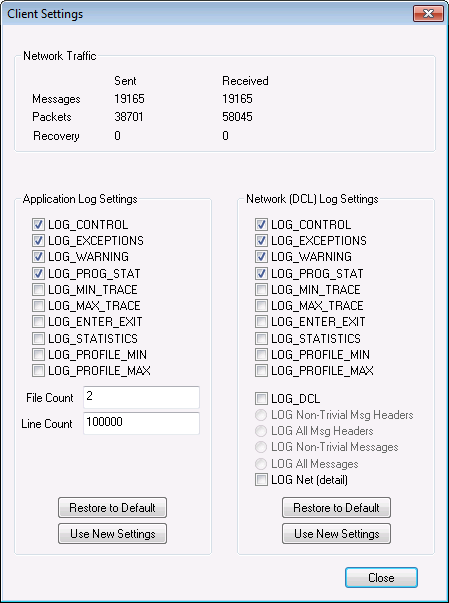
Use the Client Settings dialog box to view and modify application log settings on an ad hoc basis. The dialog is available from many clients and utilities in CygNet.
From the application Help menu, click About to access the About... dialog box and then click Client Settings to open the client log settings dialog box.
The logging properties on the Client Settings dialog box are described below.
| Property | Description |
|---|---|
| Network Traffic | |
|
Messages |
Displays the number of messages that have been sent and received over the network since the application was started. |
|
Packets |
Displays the number of packets that have been sent and received over the network since the application was started. |
|
Recovery |
Displays the number of recovery events that have been sent and received over the network since the application was started. |
| Application Log Settings | |
|
[Logging Options] |
These options correspond to the types of information that can be logged for each of the logmask keywords (LOGMASK_ELS and LOGMASK_FILE). Click the check box(es) to select or clear which settings to show in the corresponding application log. Possible options are as follows:
See Configuring Logging for more information. |
|
File Count |
The maximum number of log files that an application will create before it starts overwriting log files. The default value is 2. Example A value of two will produce CStudio001.log, then CStudio002.log, and then start again overwriting CStudio001.log. |
|
Line Count |
The maximum number of lines per log file before it will create the next file. The default value is 100000. |
|
Restore to Default |
Click to restore the default settings for the application. |
|
Use New Settings |
Click to apply the newly selected settings to the application. |
| Network (DCL) Log Settings | |
|
[Logging Options] |
These options correspond to the types of information that can be logged for each of the logmask keywords (LOGMASK_ELS and LOGMASK_FILE). Click the check box(es) to select or clear which information to show in the corresponding application log. Possible options are as follows:
See Configuring Logging for more information. |
|
Restore to Default |
Click to restore the default settings for the application. |
|
Use New Settings |
Click to apply the newly selected settings for the application. |
CygNet applications and utilities support command-line parameters to set logging options. This replaces existing settings, so if you use it, you will need to specify all desired options.
Note: Changes made in the Client Settings dialog box will not be forwarded to CygNet Studio’s nested views, but command-line parameters will.
<application name> /domain:xxxx /<logging level parameters>
| Parameter | Definition |
|---|---|
|
/domain:xxxx |
Overrides the default Domain ID with xxxx. |
|
/<logging level parameters> |
Logging parameters include: /LOG_ALL, /LOG_NONE, /LOG_CONTROL, /LOG_EXCEPTIONS, /LOG_WARNING, /LOG_PROG_STAT, /LOG_MAX_TRACE, and /LOG_ENTER_EXIT. These overwrite the default logging levels of LOG_CONTROL, LOG_WARNING, LOG_PROG_STAT and LOG_EXCEPTIONS. |
Example
|
DbsConsistencyCheck /domain:1234 /LOG_ALL |

|
|
|

